What are visuals?
In PowerTester you select which visuals are in scope for testing. You can select which visualisation in a report you want to be able to select in a test case. By selecting the visuals you want to test in the report screen, this will simplify the test case creation later on.
How do I select the visuals I want to test
In the visual selection screen PowerTester will list each page, and visualisation in that report.
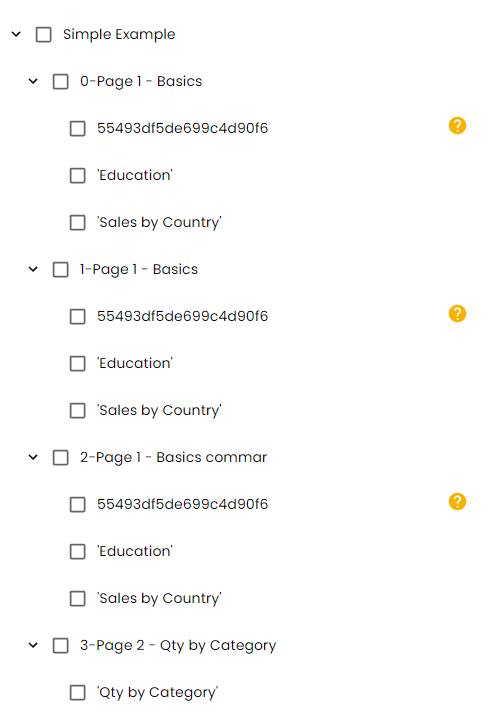
If the visualisation has a custom title in Power BI then that will be displayed, alternatively the visualisation Id is shown (this can be overridden in the next screen). Select all visualisations you want to be in scope for testing and click Next.
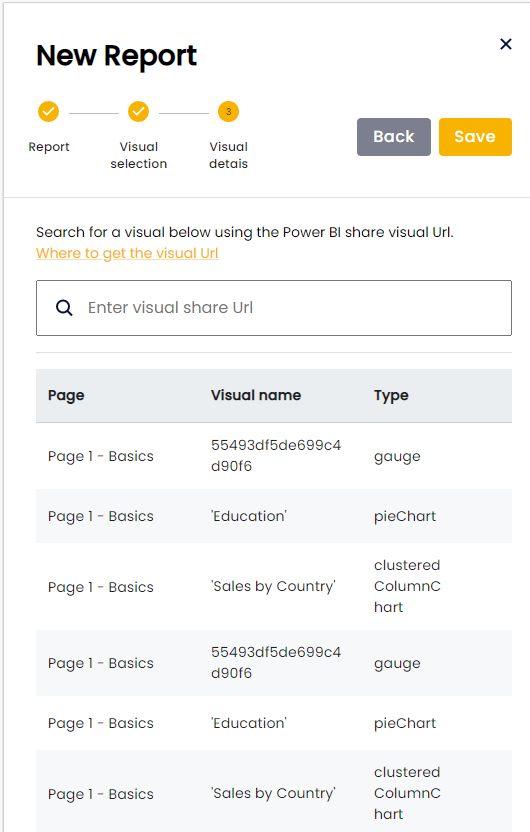
In the visual details screen it will display a list of all the visuals previously selected along with the visual type. In this screen, if you hover over a row, a rename icon will appear:

This will open the visual rename popup:
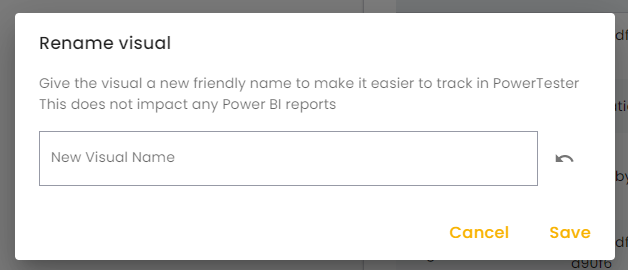
By renaming a visual in PowerTester, there will be no impact or changes made in the Power BI report. This change is for PowerTester internally only, and used to help identify the visualisations in other PowerTester sections.
You can also filter the list by Visualisation share Url, to find specific visualisations to rename.
No visual titles are being returned
View this article to set custom titles in Power BI
What other ways of selecting visuals are there?
When creating a test case, you can currently select a visual one of three ways.
- Select a visual from the inscope visuals selected as part of the report creation
- Use the visual URL to select the visual for that test case
- Enter the Alt-text to identify the visualisation on that report page