So you've logged into PowerTester and you're wondering.... what now? PowerTester has a few areas so in this article we'll go through each at a high-level and when to use them.
1. Connections

Found by clicking the last icon in the navigation bar, the Connections section is where you can create associations between databases and workspaces to represent your environments.
For example, suppose you have two reports: Sales and Expenses. The Sales report pulls data from a Sales database while the Expenses report is connected to an Expenses database. In the development environment, each report might be connected to a development version of the database and be deployed to a development workspace. As the reports move through testing, they are deployed to test and finally production workspaces and connect to test and production databases.
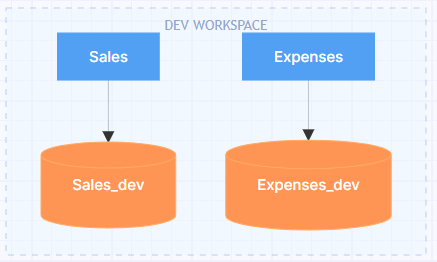
In PowerTester, you would create two connections, one for Sales and one for Expenses. Connections can contain one or more environments that represent workspace and database pairs. In this example, each of the two connections would have three environments: DEV, TEST, and PROD.
2. Reports
The "Reports" section is simply where you tell PowerTester the names of your reports.
3. Test Cases
In PowerTester, test cases are tests that compare the data from a single Power BI visualisation to the output of a SQL query you provide.
A test case contains a link to a connection, a link to a report, as well as additional information such as a SQL query with the expected data and information about how to locate the visualisation in the report.
4. Test Plans
You probably don't want to be running test cases one at a time, which is where Test Plans come in. A Test Plan is a collection of test cases, an environment to execute them in and, optionally, a schedule to execute them on.
Executing a Test Plan
Once you've created a test plan, you're ready to execute it! To do so, hover over the test plan you'd like to execute until you see the three dots on the right hand side of the page.

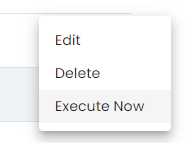
Click this to open the context menu and select "Execute Now".
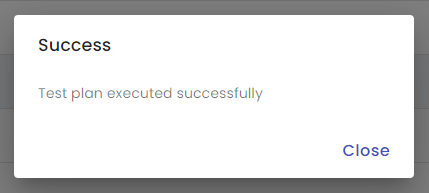
PowerTester will show you a message indicating your Test Plan has been initiated.
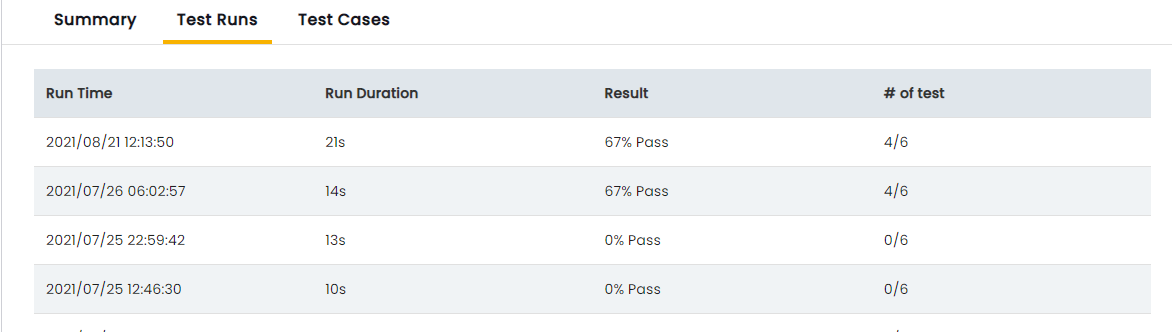
After a few seconds, you can click the Test Plan and view the test results in the "Test Runs" tab on the right-hand side blade.